 Store Screenshots
Fix the checks
Every warning the app can show before you export, what causes it, and what to do about it.
What the checks mean
Before it saves anything, the app looks over your work. Red means a store would reject it, so the export stops. Orange is a warning: you can export, but read it first.
- Nothing to export
- Every slide is hidden, or there are no slides yet. Add screenshots, or click Show on a hidden slide.
- A slide has no screenshots
- The slide would export as a picture of nothing. Add a screenshot to the slide, or delete the slide.
- A slide needs more screenshots
- The layout shows several screens, and this slide has fewer. Add screenshots to the slide, or choose a layout that uses fewer.
- The layout is missing
- The slide uses a layout this version of the app no longer has. This happens with old project files. Choose another layout for that slide.
- Something is too close to the edge
- Text or a screenshot sits outside the safe area. Stores may cut it off, and on some phones it is hard to read. Make it smaller, or move it toward the middle.
- A screenshot is almost out of view
- Most of the screen is outside the picture. Sometimes that is the look you want, but usually it is a size set too high. Lower the size, or drag the screenshot back into view.
- Text is too long for its space
- The words do not fit the space the layout gives them, even at the smallest size. All of it is still shown, but it runs past that space and may cover the screenshot. Use fewer words. About six is a good headline.
- Text is too small to read
- Stores show this picture small. At that size the words turn into a blur. Use fewer words so the text can grow, or raise the text size.
- Text is hard to see
- The text colour is too close to the colour behind it. Use a lighter or darker text colour, or change the background.
- The next slide's phone covers your text
- Connected slides let a phone cross into the slide beside it. Here it lands on the words. Move the phone on either slide, or turn off Connect slides.
- The layout is the wrong shape
- This layout is made for a different shape of picture, so it will look wrong here. Choose a layout made for this size.
- Too many screenshots for the store
- Each store takes a limited number. The extra ones cannot be uploaded. Hide the slides you need least.
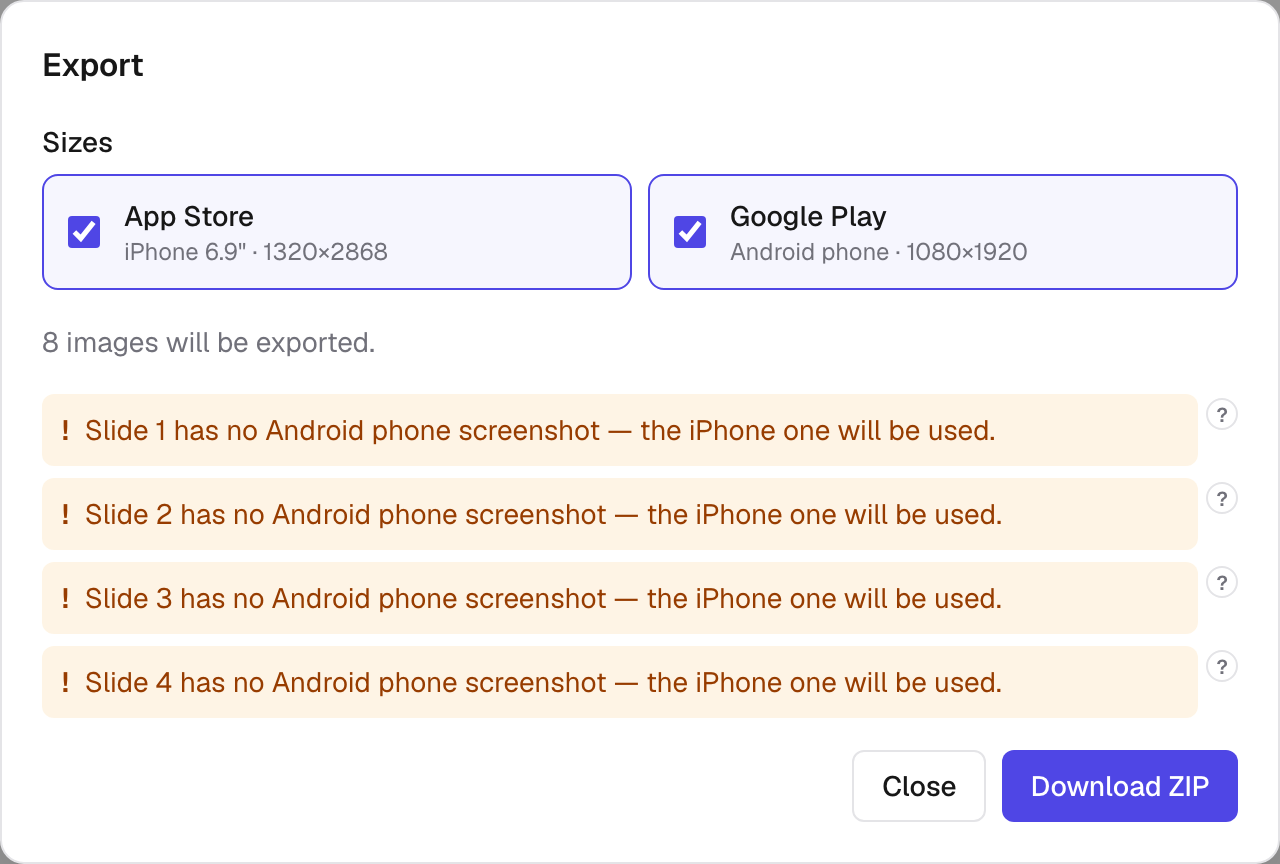
- A screenshot from another device is being used
- This size has no screenshot of its own, so the closest one is shown. It may be the wrong shape. Add a screenshot taken on that device.
- The picture is the wrong size
- The image would not come out at the size the store asks for. This is a fault in the app, not in your project. Tell us about it. Your project is fine to keep working on.
- Some text is not translated
- This language has no words of its own here, so your main language is used instead. Write the text in that language, or leave it if you meant to.
- A store does not offer this language
- One of your languages is not on that store's list, so nothing will be exported for it there. Nothing to fix, unless you picked it by mistake.
- A graphic is turned on but not made
- You are exporting a marketing picture, such as a feature graphic, and no slide is set to produce one. Choose that size at the top, then click Add a graphic. Or turn the size off.
- The look needs a background picture
- You chose a look that shows a picture behind your screenshots, and none has been added. Add a background picture in the Style tab, or choose another look.
- A setting was out of range
- A value in the project file is outside what the app allows, so the nearest allowed value is used. Nothing to fix. Set the value again if it does not look right.
Make your screenshots now — it runs in your browser, and your images stay on your computer.