 Store Screenshots
Make your first set of screenshots
Turn your app screenshots into store-ready images, step by step, in about ten minutes.
Start a project
Open the app and click New project. Give it your app's name, then choose the stores you sell on. You can change both later.
Everything stays on your computer. Your screenshots are never uploaded, so you can work offline.
Add your screenshots
Take screenshots on your phone, then drag the files into the app. Each one becomes a slide. A slide is one picture the store will show.
- Drag your files anywhere in the window.
- Wait a moment while each one is read.
- Drag a slide up or down to change its order.
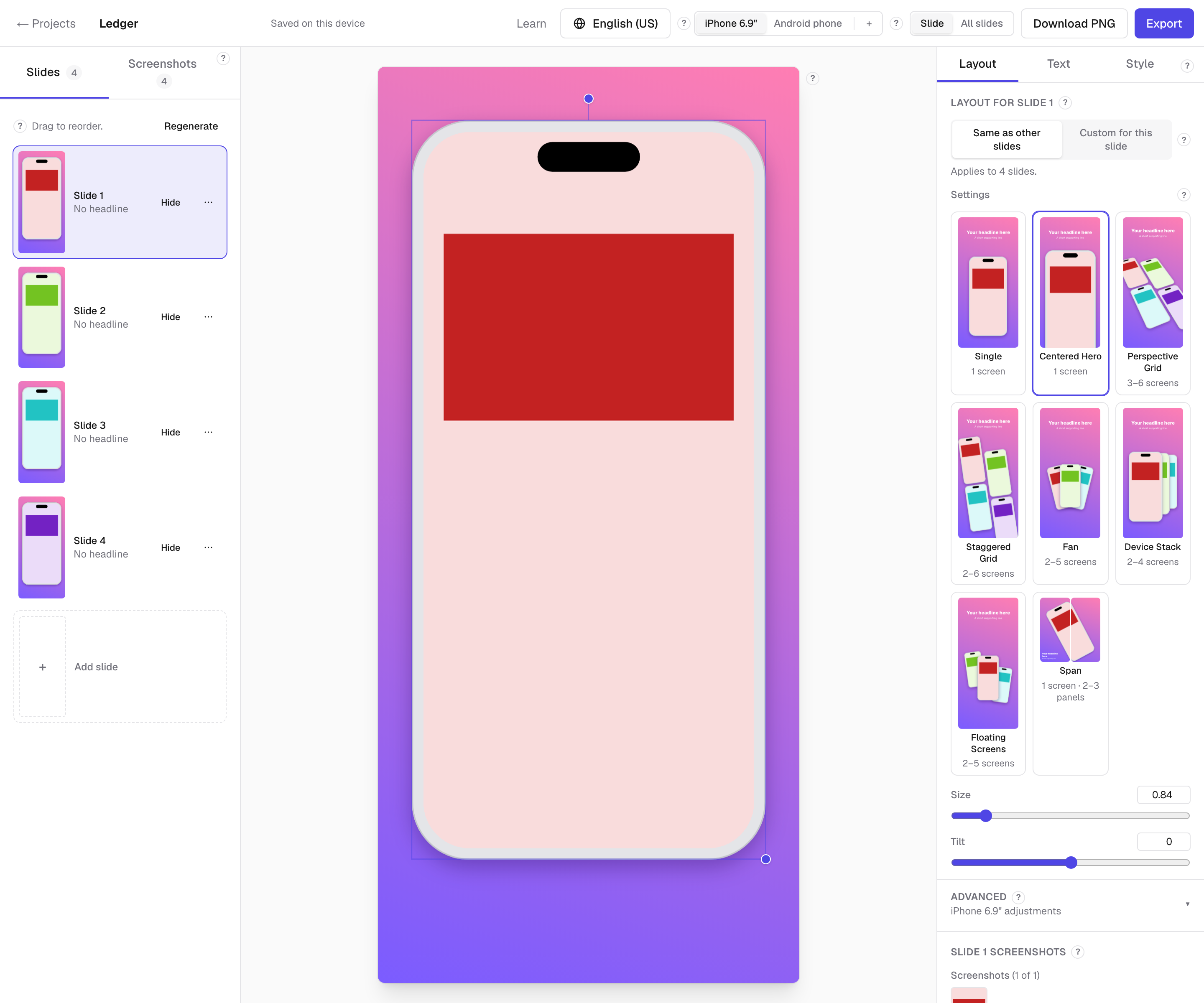
Put your best screenshot first. Most people only look at the first two.
Write your text
Click the headline on the picture and type. Say what the user gets, not what the feature is called. Keep it to about six words, so people can read it at a small size.
The subtitle is for one short line of detail. Leave it out if the headline says enough.
Export your images
Click Export. The app checks your work first and tells you about anything a store may reject. Then it saves a ZIP file.
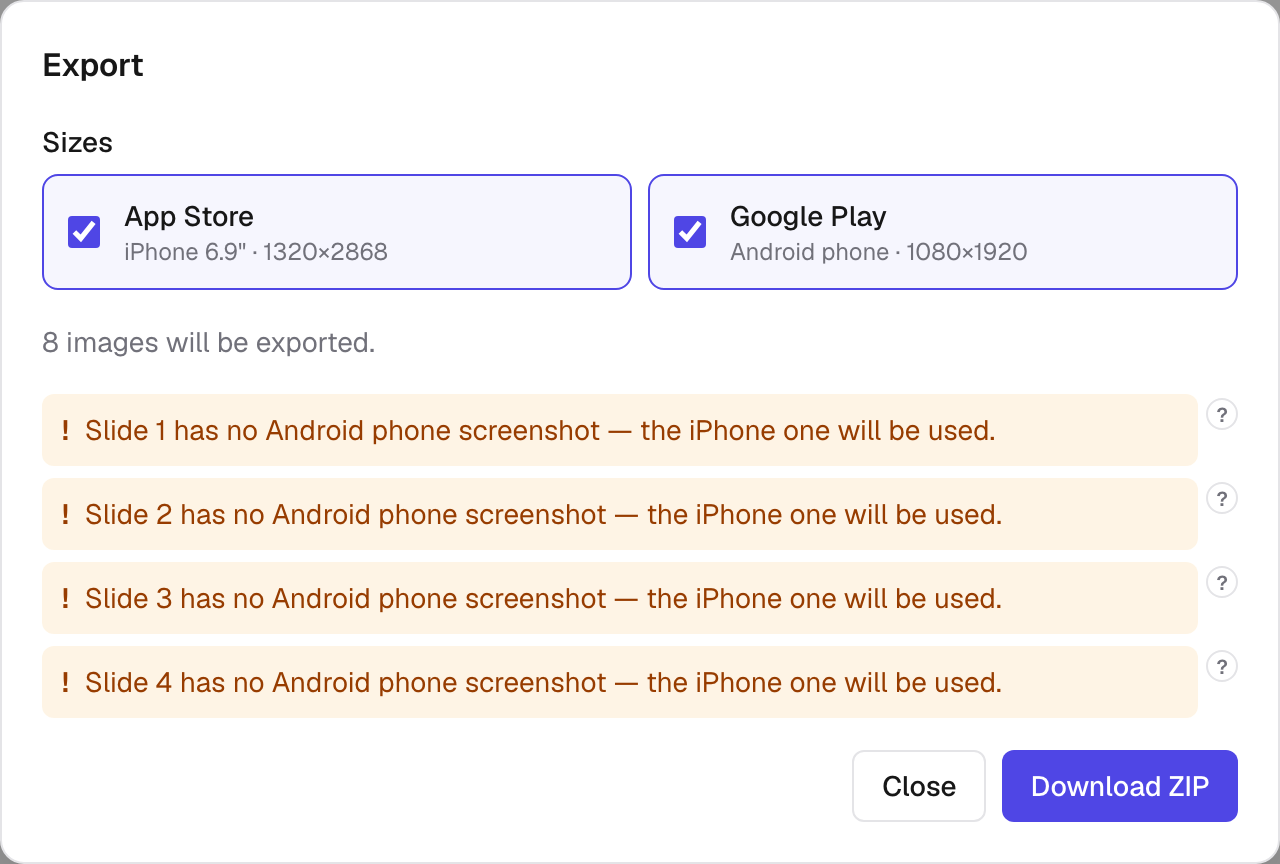
Inside the ZIP, files are sorted into folders by store, language and size. Upload them in App Store Connect or Play Console.
Where your projects are kept
Your projects are saved in this browser, on this computer. Nothing is sent to us. That is why the app works offline and needs no account.
It also means a project lives in one browser. Clearing your browsing data can wipe it. Another computer will not see it.
So keep a copy. Save a project file before you try something big, and to move to a new computer.
Saving, copying and moving a project
On the home screen, each project has a menu. Save to file writes one file. It holds the whole project: your screenshots, your words, and every setting.
Import, at the top of the home screen, opens that file again on any computer. It comes back as a copy, so nothing you already have is replaced.
Duplicate makes a second copy right here. Handy before you try a new look, so you can compare the two.
Make your screenshots now — it runs in your browser, and your images stay on your computer.